
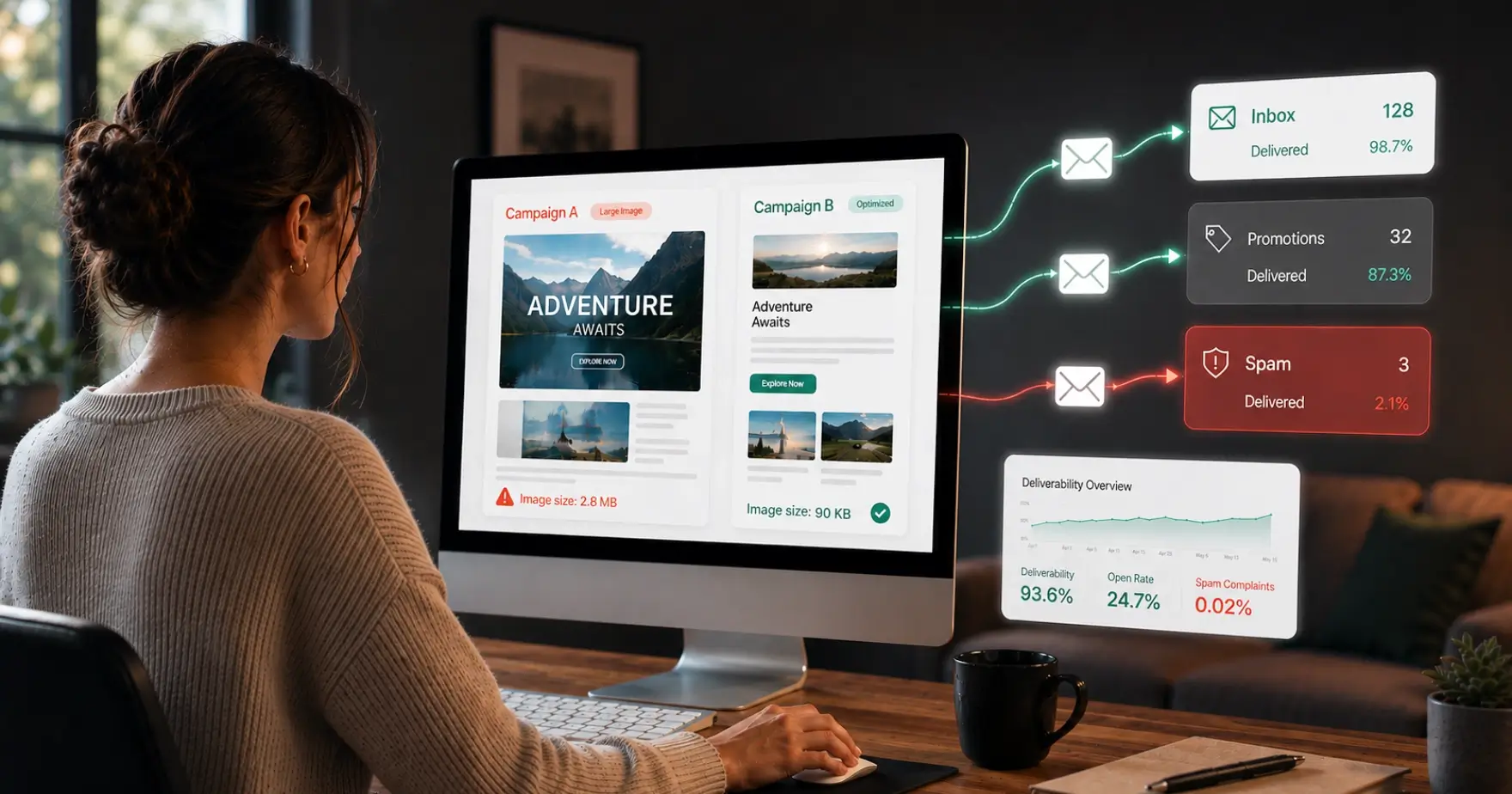
Quick answer: To keep emails out of spam, keep hero images under 90KB, supporting images under 50KB, logos and icons under 10KB, and animated GIFs under 150KB, with the total email (HTML plus images) under 102KB where possible and never above 1MB. Size hero banners to 600px wide (exported at 2x, so 1200px, for retina screens), use JPEG for photos and PNG for logos and icons. Aim for a 60% text to 40% image balance with alt text on every image.
Whenever we migrate a client from an old email platform over to HubSpot, there’s a ritual I’ve come to expect. It happens the moment we start rebuilding their email templates, a task that requires a trip into their previous system’s file manager – what I fondly call the “digital archaeological dig”. And on almost every dig, we unearth some truly massive artefacts.
We’re talking five-megabyte hero images. GIFs heavy enough to slow down a freight train. It’s fascinating because these same clients are sticklers for image size on their websites. They know page speed is king. Yet the email inbox often becomes the wild west of file sizes.
It’s an easy mistake to make. While we always take the extra time to resize and compress everything for them, it highlights a huge, often-overlooked problem. Those beautiful, high-resolution images you’re using might be the very reason your emails are landing in spam. So let’s get your images inbox-ready. I’ll walk you through how file size affects your deliverability, the best practices to follow, and the free tools that make optimisation a breeze.
Why large images hurt email deliverability
Large images hurt deliverability in four main ways: they trigger spam filters, they slow load times, they get blocked by some servers, and they can push an email past server size limits. Here is how each one works.
1. Spam and promotions filtering
Size really does matter to spam filters. They treat emails over the 100KB-200KB threshold with serious suspicion. That extra weight is often all it takes to get your message demoted to Gmail’s Promotions tab or banished to spam.
2. Slow load times
Large images take longer to load, especially on mobile or slow networks. If subscribers can’t view your email quickly, they’re more likely to delete it or mark it as spam.
3. Blocked images
Some email servers block large or suspicious images by default. If your message relies too heavily on images without enough text, filters may flag it.
4. Bounces due to file size limits
Many servers have message size limits of 10-25MB. Large images can push your email past these limits, leading to delivery failures.
Recommended email image sizes at a glance
Use these limits as your default targets for any marketing email.
| Element | Recommended dimensions | Maximum file size |
|---|---|---|
| Hero or banner image | 600px wide (1200px at 2x) | Under 90KB |
| Supporting image | 200-400px wide | Under 50KB |
| Logo or icon | Sized to display | Aim for under 10KB |
| Animated GIF | Sized to display | Under 150KB |
| Total email (HTML plus images) | – | Under 102KB ideal, 1MB absolute max |
Best practices for images in email marketing
The core rule is to keep files small, choose the right format for each image type, and never let images carry the whole message on their own.
For the exact dimensions and file size targets to work to, see the table above. The sections below cover the format and design choices that make those targets achievable.
Formats
- JPEG: best for photos.
- PNG: good for logos or icons with transparency.
- GIFs: keep under 150KB and avoid long looping animations.
- Avoid SVG: while great for scaling, SVGs are not fully supported by Outlook and some other email clients. Stick to PNG or JPEG for universal compatibility.
Design balance
- Aim for a 60% text to 40% image ratio.
- Always include alt text for accessibility and deliverability.
- Don’t rely on one giant image – it looks spammy and risky.
How to use 2x (retina) images in emails
To use retina images, export each image at double its display size, then constrain it to the display width in your HTML. This keeps visuals crisp on high-resolution screens without serving a blurry image. High-resolution screens like Apple Retina displays and modern Android devices can make standard images appear blurry, so 2x images solve that.
1. Export at double the display size
If your hero banner displays at 600px wide, save it at 1200px wide, then scale it down in HTML:
<img src="hero@2x.jpg" width="600" style="max-width:600px; height:auto;" alt="Hero banner">2. Compress aggressively
- Retina images are larger, so use tools like TinyPNG or Squoosh to keep file sizes under control.
- Even at 2x, aim to hit the targets in the table above – under 90KB for hero images and much smaller for supporting images.
3. Prioritise key visuals
- Use retina images mainly for logos, hero banners, and key visuals.
- Supporting icons or small product images can stay standard size if weight is a concern.
4. Always test
- Preview your emails on both desktop and mobile to confirm sharpness and load times.
This approach balances crisp visuals with fast loading, ensuring emails look great without hurting deliverability.
Free tools to optimise email images
These free tools cover the two jobs you need most often: compressing files and resizing or creating images.
Compression tools
- ILoveIMG: quick compressor with resize and crop features.
- TinyPNG: compresses JPEG and PNG while preserving quality.
- Kraken.io: great for bulk compression.
Resizing tools
- Canva: perfect for creating banners.
- Pixlr: online editor for resizing.
- Photopea: free Photoshop alternative in the browser.
Workflow for optimising images before sending emails
Follow these four steps in order every time you add an image to an email.
- Resize your image to email-friendly dimensions (600px width max for banners).
- Save at 2x resolution (for example 1200px wide) for sharper results on high-resolution screens.
- Compress with TinyPNG, Squoosh, or a similar tool.
- Test by sending the email to yourself and checking load speed on desktop and mobile, and file size in Gmail (use “Show Original” to view size).
This simple workflow helps you avoid bloated campaigns and keeps deliverability strong.
Final thoughts
Large images might look great in design tools, but they can quietly sabotage your email deliverability and engagement. By keeping file sizes small, balancing text with visuals, and optimising with 2x images for retina screens, you’ll ensure your emails reach more inboxes and look sharp for every subscriber.
What size should email images be?
Email images should be sized to display correctly without slowing down load times. As a rule of thumb, hero and banner images should be 600px wide at display size, saved at 2x resolution (1200px wide) for retina screens, and supporting images should be 200-400px wide, and icons and logos simply sized at double (2x) the display size. For file size, keep hero images under 90KB, supporting images under 50KB, and logos or icons under 10KB, with total email size ideally under 102KB (and never above 1MB) to avoid deliverability issues and Gmail clipping.
What is the ideal size of an email?
What is the best format to email an image?
The most universally supported formats for email are JPEG, PNG, and GIF. Use JPEG for photos and detailed images at 60-70% compression, PNG for logos, icons, or images with transparency, and GIF for simple animations kept under 150KB. Avoid SVG and WebP, as they are not supported by all email clients, especially Outlook, so stick to JPEG or PNG for compatibility.
Should I use retina (2x) images in email?
Yes, especially for logos, icons and visuals containing text. These have sharp edges where any pixelation is immediately obvious, so they benefit most from 2x resolution. You should always compress them afterwards to keep file sizes reasonable. Photographic images without text are more forgiving: their detail masks slight pixelation, so 1.5x or even 1x is often acceptable, which also helps keep their naturally larger file sizes down.
How do I reduce the size of images for emailing?
You can reduce image size using a combination of resizing and compression:
- Resize the image to the dimensions it will display in the email (for example 600px wide for hero images, or 1200px if you’re using 2x images).
- Compress the image using free tools like ILoveIMG or TinyPNG without significant quality loss.
- Optimise formats: use JPEG for photos and PNG for logos and icons.
- Check total email size to ensure your email loads quickly and avoids Gmail clipping (messages over 102KB may be clipped).
Can I send an email that's just one big image?
Technically yes, but it’s risky. Spam filters dislike image-only emails, and many users block images by default. Always mix text and visuals.
Do images affect open rates?
Not directly. What drives opens is mostly the subject line, preview text, sender name and reputation, personalisation, and send timing. Image weight isn’t part of that decision, since subscribers choose whether to open before images even load. There’s an important indirect effect, though: a heavy, image-stuffed email is more likely to trip spam filters or get clipped by Gmail, and an email sitting in the spam folder won’t be opened at all. So while images don’t affect open rates directly, keeping them light protects the deliverability that open rates depend on.
Are GIFs safe to use in email?
Yes, but keep them small (ideally under 150KB). Overly large GIFs slow load times and may not render smoothly in all inboxes.
